

Xeno Executor for parents: start with four calm checks
You do not need to know how an executor works to take a sensible first step. Keep the child involved and work out what actually happened.
A familiar file name does not prove that a download is official or safe. Security reporting has documented malware and credential theft in malicious or changed Roblox executor downloads, but that does not prove a particular file is infected. Treat it as unverified until trusted security software or a qualified technician assesses it. This Xeno Executor for parents checklist gives parents a calm first step.
Ask where the file came from, whether it was opened, and whether anyone entered a Roblox password. Note any warning or unexpected account change, then pause further downloads and use. Do not repeat the action to test it. Parents can begin with those facts instead of trying to diagnose a name.
- Do not open the file again to see what it does.
- Keep the file name, folder, source address, and approximate time if available.
- Use a trusted device for password changes when credentials may be exposed.
- Keep built-in security protection enabled and avoid unknown cleanup tools.
- Use Roblox's own help and account pages for account-specific steps.
Tell the difference between a download, a run, and shared credentials
The right response depends on the exposure. A file that was never opened is not the same as a program that ran or a password that was entered on an untrusted page.
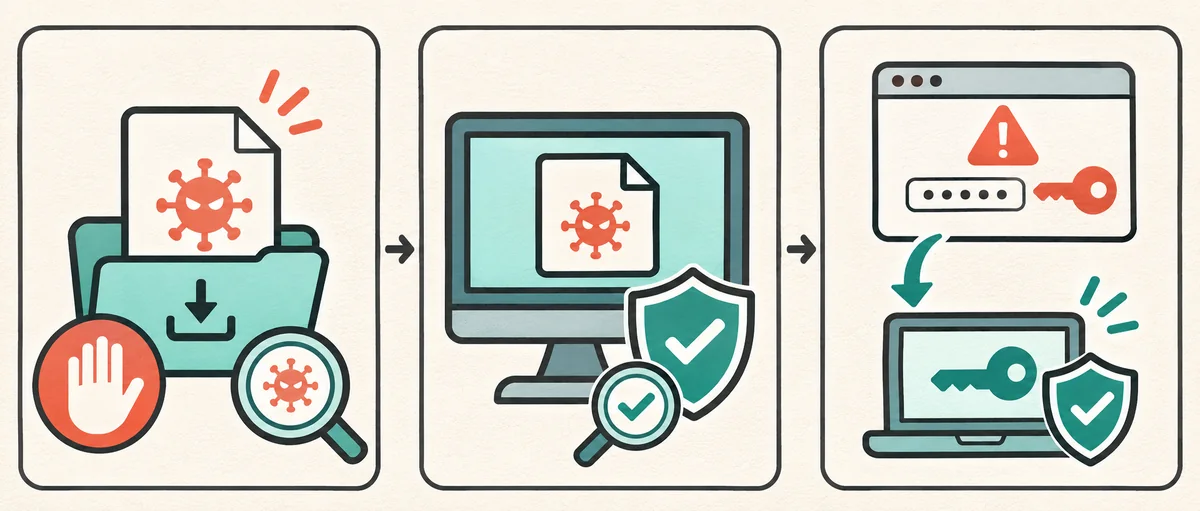
If the file was only downloaded, do not open it; record its name and location for a trusted security product to assess. If it was opened, check the device with current security software. If a password was entered on an unfamiliar page or program, treat that as possible account exposure even if the computer looks normal. This Xeno Executor for parents checklist separates those steps for parents.
The diagram is a starting point, not a diagnosis. A normal-looking screen cannot confirm a file is safe, and a warning alone does not explain what happened. Check the account and device separately.
| Downloaded, not opened | Do not open it. Preserve the file details and let trusted security software assess it. |
|---|---|
| Opened or executed | Stop using it and check the device with trusted, updated security software. |
| Password entered or reused | From a clean, trusted device, change the exposed password and review account access. |
Protect the Roblox account if a password may have been exposed
A download alone does not show that an account was accessed. If your child entered a password on an unfamiliar page or program, shared it, reused it where exposure is plausible, or noticed unusual activity, go to Roblox directly from a trusted device. Change the affected password, make it unique, and enable two-step verification if available.
Review account contact details, settings, and activity. Sign out of sessions the owner does not recognize and contact Roblox Support about unauthorized changes. Update any reused password on other important accounts, starting with the email account used for recovery. Do not enter new credentials on the computer under review until it has been checked. Parents should protect the recovery email first when a password was reused.
Check the device without making cleanup riskier
If the file was opened, stop running it and scan with a trusted, updated security product. Follow its instructions if it reports a detection; do not restore a quarantined file because a website calls it a false positive. A scan is useful evidence, but it cannot guarantee a device is safe.
Keep protection enabled. Do not add a broad exclusion, run a download-page script, or install another unknown cleaner. Avoid deleting Windows, browser, or Roblox folders. If alerts repeat or you cannot identify the file, preserve the alert details and ask a qualified technician. For a school-managed device, contact its administrator before changing settings. Parents should not change system settings they cannot identify.
Review Roblox parental controls for your family
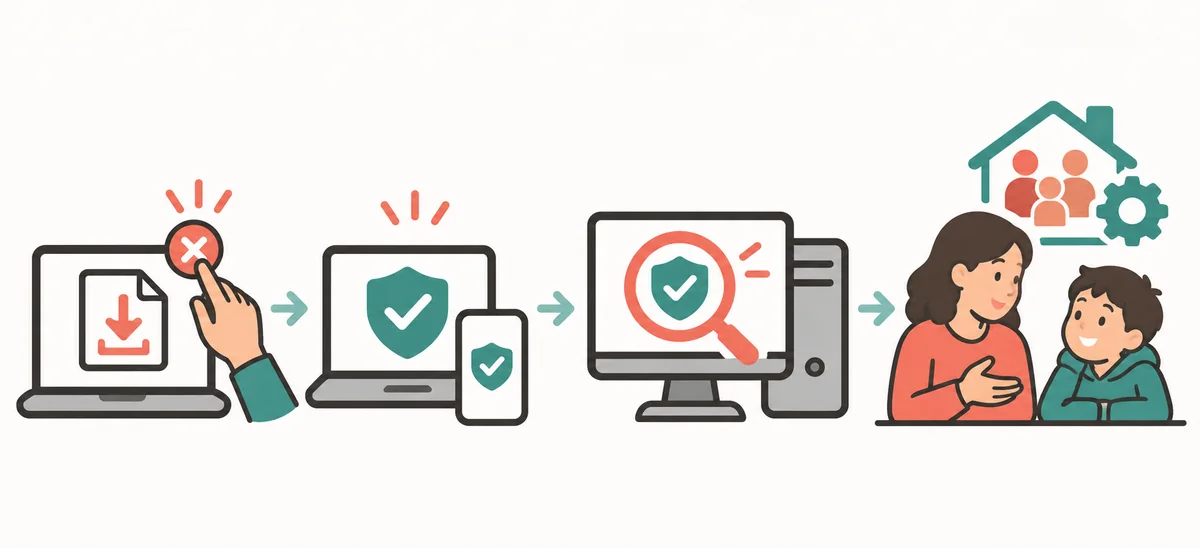
Roblox's official Parental Controls overview lists settings for content, chat, spending, screen time, friends, and privacy. Open the current controls through Roblox's own help or account pages, then choose options that fit your child's age and your family's expectations.
Review which experiences are available, who can contact your child, and whether spending or screen-time limits fit your routine. These account controls do not scan a computer or remove a downloaded file. Parents can review them with a child and use Roblox Support for an unfamiliar account change. Avoid third-party repair pages.
Talk with your child without losing useful details
Tell your child that the first goal is to understand what happened and protect the account and device. Ask what the download promised, where they found it, whether anyone requested a password or payment, and what happened after the click. Do not ask them to open it again or sign in to reproduce the issue. Parents can make clear that asking for help is welcome.
Save a relevant address or screenshot only if it is safe and does not expose private information. Do not post the child's username, email, recovery details, or file in a public chat. After the checks, agree on a simple rule: ask an adult before installing an add-on, never share passwords, and report suspicious messages early. Parents can keep the conversation focused on safety rather than blame.
Know when to contact Roblox Support or get device help
Contact Roblox Support if your child cannot sign in, recovery details changed, unfamiliar purchases or messages appear, or a security setting changed without permission. Never send a password or recovery code to someone who contacts you first.
Ask a qualified device professional about repeated security alerts, a school-managed computer, or a file you cannot identify. ESET and Bitdefender have reported risks in malicious or compromised executor downloads; those reports support caution but cannot confirm what is inside a particular Xeno-labeled file. Parents should use Roblox Support for account access problems, not an unsolicited recovery service.
Mistakes that can make the situation harder
Do not assume every Xeno-labeled file is identical, official, or safe; do not assume a warning proves infection. Avoid both ignoring an alert and deleting unrelated system files. Keep account recovery inside Roblox's official flow and device checks with a trusted security product or professional. Parents should avoid panic-driven repairs that request a password or payment.
- Do not reopen the file or share passwords and recovery codes.
- Do not treat parental controls as a malware scanner.
- Do not call a device clean based only on how it looks.
- Do not install an unknown cleaner or disable protection.
Set a safer plan before the next Roblox session
If you found this page by searching Xeno Executor for parents, start with what was downloaded, opened, or shared. Set a family rule for downloads and game add-ons: show an adult a page before downloading a file that promises cheats, free currency, or a bypass. A familiar name or positive comment cannot verify a file. Never enter a Roblox password outside Roblox, and ask for help when a link or warning feels suspicious.
Review Roblox settings together and keep security software updated. For file removal, see the site's Xeno Executor removal guide; for broader risks, read the Xeno Executor safety review. This page offers family response guidance, not a file scan or a guarantee about a download.
Frequently asked questions
What should parents do if a child downloaded Xeno Executor?
Ask whether the file was opened or a password was entered, pause further use, record the file name and source, and have trusted security software assess the download. A download alone does not prove infection or account access.
Should parents change a child's Roblox password?
Change it from a trusted device if it was entered on an unfamiliar page or program, shared, or unexpected account activity appears. Use Roblox's official account flow and update reused passwords on important accounts.
Does a Xeno Executor download mean parents should assume malware?
No. The name alone cannot establish what a particular file contains. Malicious or modified executor downloads have been reported, so do not open the file and use trusted, updated security software to check it.
Can parents use Roblox parental controls to remove an executor file?
No. They manage account settings, not computer scans or file removal.
Where can parents get help if the account or device changed?
Use Roblox Support for account access or settings changes, and a trusted security provider or qualified technician for repeated device alerts. Never share a password or recovery code with an unsolicited contact.
What does Xeno Executor for parents guidance cover?
It is a family response checklist for a download, a file that was opened, and possible account exposure. It does not verify or certify a particular file.