
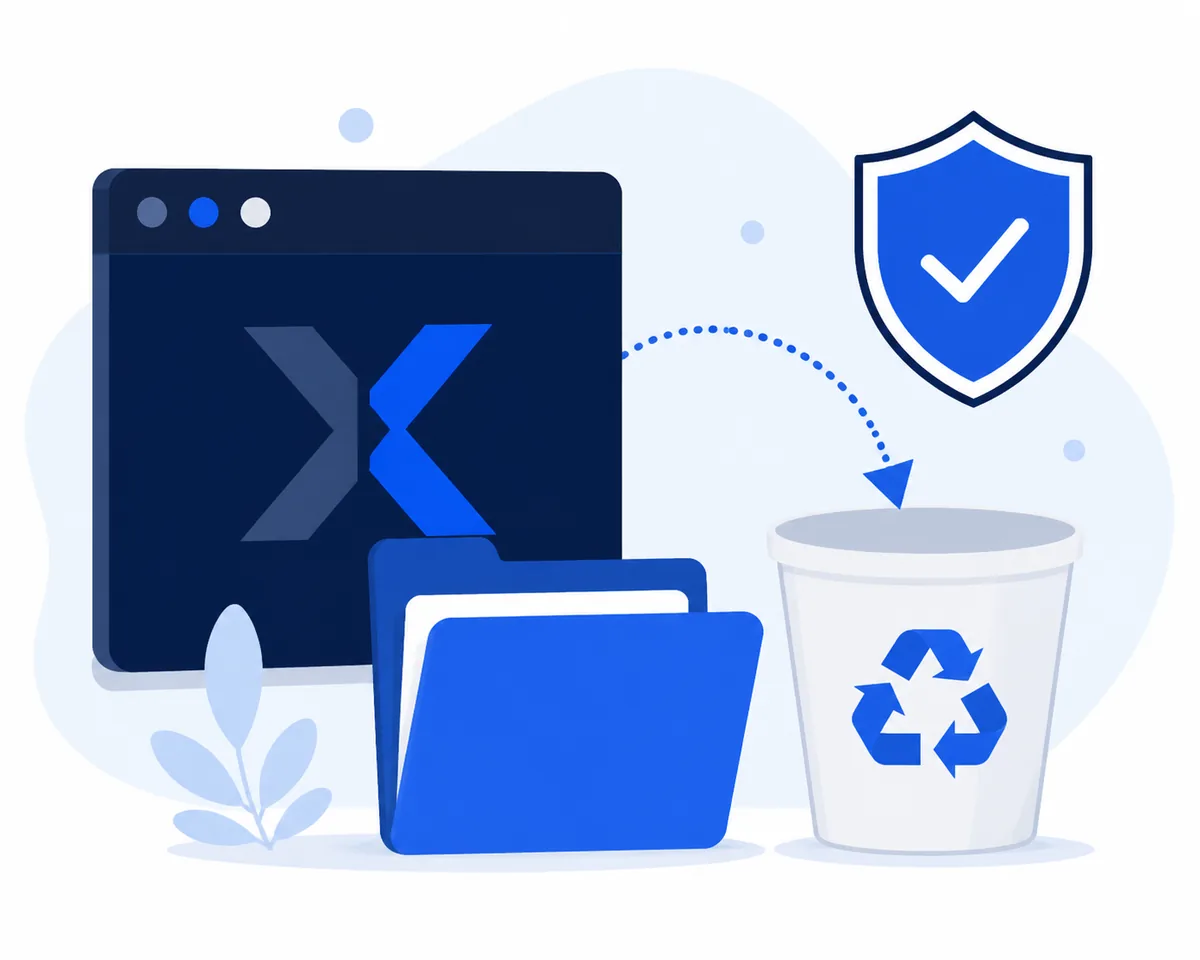
How to uninstall Xeno: the safe order
Use the least destructive path first. Uninstall an entry if Windows provides one; otherwise remove only the folder and shortcuts you can connect to the Xeno file.
The phrase how to uninstall Xeno can describe two different setups: a normal installed program, or a ZIP/EXE that was opened from a folder. The first can often be removed through Windows Settings or Control Panel. The second may have no uninstall entry, so deleting the dedicated folder and checking startup locations is more appropriate.
Do not assume that removing one executable proves the computer is clean. A file may have been quarantined already, a shortcut may point somewhere else, or a user may have entered credentials on a related page. Treat removal, scanning and account aftercare as separate checks.
- Close Roblox and Xeno before changing files.
- Record the filename, folder, source URL and download date if you may need them later.
- Use normal Windows removal tools before manual cleanup.
- Never disable Microsoft Defender just to make an uninstall or deletion complete.
Before deleting the Xeno Executor files
Write down the exact name of the downloaded ZIP, EXE or folder. If the file came from a public download page, save the final URL and the date you accessed it. That small record helps you distinguish an old copy from a later replacement and gives a security tool or support technician something concrete to inspect.
If Xeno appears in Windows' installed-app list, follow Microsoft's normal uninstall instructions. If it does not appear there, do not invent a registry command. A standalone archive is usually best handled by closing it, deleting the dedicated folder and reviewing the locations where it could start automatically.
This site does not host a Xeno executable. If you later compare a reinstall source, return to the public Xeno source page and re-check the version and final file before opening anything. Uninstalling an old copy does not make a new download trustworthy.
| Keep as evidence | Filename, folder path, source URL, download date and hash if available |
|---|---|
| Do not remove | Roblox files, Windows folders, browser profiles or unrelated scheduled tasks |
| Stop and escalate | Unknown persistence, repeated detections, credential exposure or system instability |
Step-by-step: remove Xeno from a Windows PC
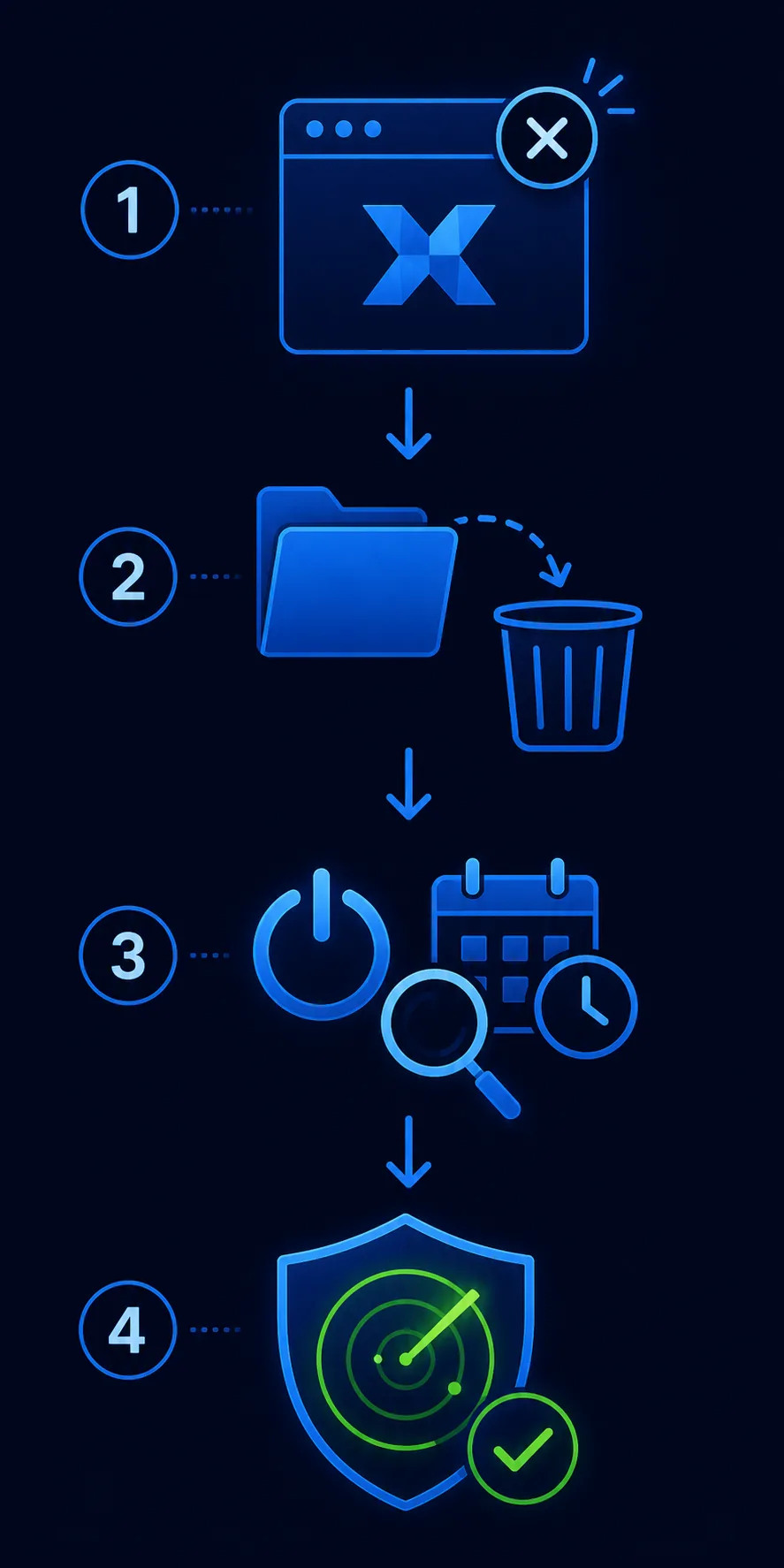
- 1. Close related processesExit Roblox and Xeno. If a process remains, open Task Manager and end only a process whose name and file location clearly match the copy you are removing. Do not stop Windows, Roblox or security processes just because they are nearby in the list.
- 2. Use Installed apps firstOpen Settings, then Apps and Installed apps. If a clearly identified Xeno entry exists, choose its menu and select Uninstall. Follow the prompts and note any error instead of bypassing the message with a random cleaner.
- 3. Remove the dedicated folderIf the program was a ZIP or standalone EXE, delete only the folder you created for that copy. Check the Desktop, Downloads and a dedicated tools folder, but do not delete a parent folder that contains other applications or personal files.
- 4. Check shortcuts and startup entriesRemove shortcuts that point to the deleted file. Review Task Manager's Startup apps and disable an entry only when its name and file path clearly belong to Xeno. A disabled item is easier to review than an unknown registry edit.
- 5. Review scheduled tasks carefullyOpen Task Scheduler and look for a task that unmistakably references the removed program or its exact folder. Do not delete Microsoft, driver or Windows Defender tasks based on a vague name. If the entry is unclear, keep it and ask for a second review.
- 6. Restart and confirm the narrow resultRestart Windows, confirm that the deleted shortcut no longer launches anything and check that Roblox and normal security tools still open. A clean restart is a checkpoint, not proof that every risk has disappeared.
Scan for leftovers without weakening protection
After removal, scan the exact folder or remaining file first. Microsoft's Windows Security guidance explains how to scan a file or folder with Microsoft Defender and how to start a quick scan. Let the security product report the result; do not add a broad exclusion because a download page says the file needs one.
If a scan detects something, keep it quarantined and record the detection name, path and time. A clean scan is useful evidence, but it is not a publisher verification or a guarantee that an earlier login was safe. If the device behaves strangely after removal, disconnect it from the network and get help from a qualified technician rather than repeatedly reinstalling the same file.
If Windows cannot remove an installed entry, use the error message and Microsoft's program-installation troubleshooting guidance as the next reference. Avoid registry cleaners and scripts that promise to remove every trace without showing exactly what they will change.
- Run a scan with current security definitions.
- Review quarantine and detection history instead of suppressing alerts.
- Check browser extensions and recent downloads if the source page was unfamiliar.
- Do not treat an antivirus exception as an uninstall requirement.
What to do if you entered a password or Roblox details
If you entered a Roblox password, email password, cookie, token or payment detail on a related page, treat that as a separate account-security event. From a device you trust, change the affected password, revoke unfamiliar sessions, turn on multi-factor authentication where available and watch for unexpected recovery or login messages.
Do not paste a password into a so-called verification tool to test whether the removed copy was safe. Xeno Executor is not an official Roblox product, and removing its files cannot undo a credential disclosure. If you used the same password elsewhere, change those accounts too.
If you did not enter credentials, still review browser extensions, downloads and startup prompts. Keep the old source URL and filename if a later alert appears; the exact artifact is more useful than a screenshot of a download button.
- Change passwords from a known-clean device when exposure is possible.
- Revoke sessions and review account activity.
- Enable multi-factor authentication instead of trusting a new download.
- Contact the relevant account provider if you cannot recover access.
Common uninstall mistakes to avoid
The most dangerous removal advice is often the most confident: disable protection, delete a whole system folder, run an unknown PowerShell script or download a second cleaner. None of those actions proves that Xeno was removed, and each can create a new problem.
If your original goal was to fix an attach or startup error, use the Xeno troubleshooting guide only to compare symptoms—not as a reason to reinstall a file you have just decided to remove. For source and platform context, see the PC page, the installation guide and the safety review.
- Do not rename a Windows ZIP or EXE into an Android APK.
- Do not delete Roblox or Windows folders to remove one utility.
- Do not trust a random removal tool more than the original file evidence.
- Do not reinstall immediately just because the program is gone.
- Do not claim a device is safe solely because one scan is clean.
Frequently asked questions
How do I uninstall Xeno Executor on PC?
Close Roblox and Xeno, use Windows Installed apps if a clearly identified entry exists, otherwise remove only the dedicated Xeno folder, review shortcuts, startup entries and scheduled tasks, then restart and scan.
How do I delete Xeno Executor if it is not in Installed apps?
Record the file path, close the process and delete only the dedicated folder or standalone file you can identify. Then check shortcuts and startup locations without deleting unrelated Windows or Roblox files.
Should I delete Roblox when removing Xeno?
No. Xeno and Roblox are separate programs. Removing Roblox can create a new problem and does not prove that Xeno-related files or account exposure were handled.
Should I disable antivirus to uninstall Xeno?
No. Keep protection enabled, review the detection and use a normal Windows uninstall or narrow file removal. Do not create a broad exclusion because a download page requests it.
What if Xeno starts again after I delete the folder?
Recheck the exact shortcut, Startup apps and scheduled tasks, then scan the device. If you cannot identify the entry safely, stop editing system locations and ask a qualified technician for help.
Is it safe to reinstall Xeno after uninstalling it?
Uninstalling an old copy does not verify a new one. Re-check the source, version, final filename, hash and security response before opening anything; no verified Android APK is documented by this site.